Finding and Removing Trojans Without Additional Software
Since at least once a day somebody will tell me about their home computer running really, really slow or popping up advertisement windows every few minutes or not starting all the way up, I have decided to write my personal guide to freeing your computer of Trojans and other spyware WITHOUT BUYING ANYTHING or DOWNLOADING SOFTWARE OFF THE INTERNET. .
How'd the SpyWare and Trojans get on my computer?
SpyWare and Trojans are programs that you installed on your computer, probably
by accident. They could have come as a secondary program hidden inside something
else you installed (hence the name Trojan ...like the Trojan Horse) or they
could have been installed by some tricky website that you visited. Luckily for
you the Trojan has to start up when your computer boots up and you can simply
tell your computer not to start the Trojan.
How do I stop them from starting?
Use the tools provided with Windows to find them and keep them from starting
up.
MSCONFIG - An easy way to
do a little detective work.

First we need to find where the Trojan is loading from. The easiest way to do
this in WindowsXP is to launch System Configuration Utility (MSCONFIG) from
the Run box (click Start, then Run and in the Open Box type MSCONFIG
and click OK. If you are not running WindowsXP or don't have MSCONFIG
then you can skip this section.
Once you open MSCONFIG, click on the tab called Services and check the checkbox
on the bottom that asks "Hide All Microsoft Services" and make sure
you know what those services are that are starting up.
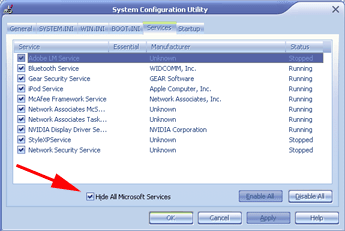
If you don't know what a specific service on this list is for then make a note
of the service and we ill turn it off in a bit (we are not going to change anything
here).
Now move on to the last tab called Startup. This is the Holly Grail when fighting
Trojans because most Trojans will start from the locations listed here. NOTHING
on this list NEEDS to be there for your computer to start up and run properly,
they are ALL programs that Windows is starting up in addition to the normal
files needed for the operating system to function. In other words, they are
all things that were installed after the operating system was installed
by either the computer seller or by you.
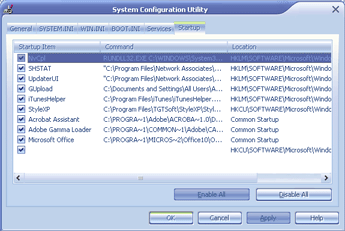
Again, you should have a pretty good idea of what these programs are for. The
Command Path is often very helpful in identifying what something is (for example,
SHSTAT on this list starts from the Network Associates folder ...so we can guess
that it is part of McAfee anti-virus). Most Trojans that you should be worried
about start from the location C:\Windows or C:\Windows\System32, so if you see
anything running from there (especially if it is named something random like
PO6583Z.exe or something nondescript) then that should be an item of concern.
Again we are not going to do anything from within MSCONFIG, just make a note
of the name of the suspect file and not weather it is starting up from the location
of Common Startup, HKLM, or HKCU. Now we can close out of MSCONFIG and take
a look at the next section.
Stopping from Common Startup and the
Registry Keys HKCU and HKLM - This will fix 90% of common Trojan
problems
Common Startup
If you discovered items that load as part of Common Startup then you are in luck, these are very easy to get rid of. Click on Start then All Programs (or just Programs) and navigate to the group called Startup. Here you will find a shortcut to the offending program, simply delete the shortcut to prevent this program from starting the next time the computer boots.
HKLM and HKCU Registry keys
If you identified items starting up from HKLM or HKCU then you are fortunate enough to be able to take a trip into the Windows Registry. Despite what you have portably heard, the Windows Registry is a perfectly safe place to venture into ...provided of course that you don't touch ANYTHING that you are not 100% sure of. Just think of it as browsing through a very expensive crystal shop.
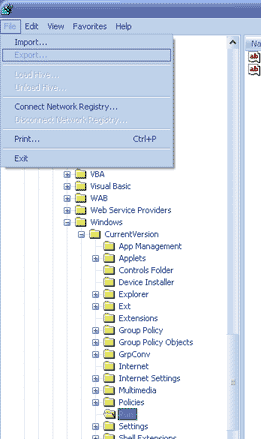
To take a look at the Windows Registry, click Start then Run and then type REGEDIT in the Run Box and click Ok, the Registry Editor will then open. On the left hand side, browse to: HKEY_CURRENT_USER\Software\Microsoft\Windows\CurrentVersion\Run. Before you do anything else, click on File then Export (as shown) and then save a backup of this key in its current state (name it HKCUbackup.reg) in your C:\Windows folder. This will back up this Registry key exactly how it is before any changes and allow you to undo any changes made.
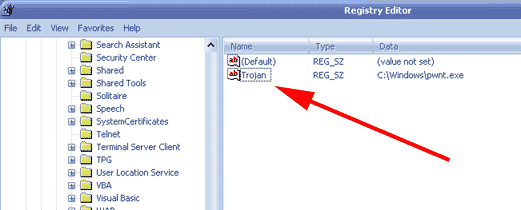
Now that you have backed up this key you can click on the suspected Trojan on the right pane and press the delete key ...so long Trojan. Remember to pay special attention to items that run from C:\Windows or C:\Windows\Sytem32. Also remember that nothing needs to be here for Windows to run. If you don't know what an item is, write it down, delete it and then once your computer is working again you can Google the item and see if you can get some specifics of what it is and what it was doing starting up on your computer.
If you accidentally deleted something that you thought was a Trojan and then later discovered was something you actually wanted, you can simply browse to the C:\Windows directory and double-click on the file called HKCUbackup (that you made earlier) and put everything back the way it was. Repeat this entire process by navigating to: HKEY_LOCAL_Machine\Software\Microsoft\Windows\CurrentVersion\Run and naming your backup file HKLMBackup.reg.Now, some Trojans are pretty sneaky and check to make sure that you haven't removed them from the registry. Every minute or so they will check the registry and re-add any missing keys so that they will live another day. If you run into any of these stubborn keys, try deleting them and then quickly switching your computer off with the power button before they have a chance to re-add the key.
Stopping Services
If you identified a rouge service running in the previous MSCONFIG section,
here is where we turn it off. Depending on your version of Windows, you can
get to Services via the shortcut called Services in the Control Panel
or the shortcut Administrative Tools and then Services. Once opened
you will see the list of services that we saw earlier in MSCONFIG. Scroll down
to the suspect service and double-click on it. You will be presented with the
properties of the service and possibly a little bit more description of what
it is and what it does. If you want to Stop the service and prevent it from
starting the next time Windows starts up then change the Startup Type to Manual
and click the button labeled Stop. This service will not start up the
next time Windows starts. Please be careful when turning off services. If you
don't know what the service is then try to search for it on Google or ask your
nearest IT professional who is not me.
IE Browser Add-ons
Some Trojans don't start until your launch Internet Explorer, these Trojans
install themselves as a browser Add-ons. WindowsXP SP2 users can enable/disable
Browser Add-ons via the Control Panel shortcut labeled Internet Options
(or Tools and then Options from within Internet Explorer). One
Internet Options is open, click the Programs tab and the Manage Add-ons button
to enable/disable select Add-ons. For those of you without SP2, you should really
update your machines to SP2. You can still manually remove Add-ons, but it gets
increasingly more difficult to do so. A quick check of the Registry can show
you some of the Add-ons that you might have. Click Start then Run
and then type REGEDIT in the Run Box and click OK, the Registry
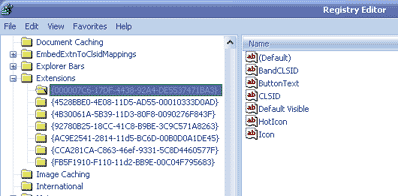
Editor will then open. Navigate to HKEY_LOCAL_MACHINE\SOFTWARE\Microsoft\Internet
Explorer\Extensions and then, before you do anything stupid, click on File
then Export and then save a backup of this key (call it AddonBackup.reg)
into your C:\Windows folder. Now that you have backed it up you can click on
the sub keys (displayed by a string of letters and numbers called a CLSID) and
delete the ones you don't want to load.
Some Trojans may also create their own key (besides Extensions) under: HKEY_LOCAL_MACHINE\SOFTWARE\Microsoft\Internet
Explorer. Look in this location for another keys that loads items by CLSIDs
as well. Some Add-ons will also register .dll files as part of the operating
system (which I will not cover here). You best bet is to upgrade to WindowsXP
SP2 to manage Internet Explorer Add-ons.
Happy hunting,
Jim
(for a printable copy of this page, click here)